





LABORATORY FIELD SERVICES
Renew Multiple Sites (User Manual)
Process Summary
-
Edit Business (if you have changes)
a. Business Information, Mailing Address
b. Contact Information
c. Ownership -
Edit Primary Testing Site (if you have changes)
a. Primary Site Information, Physical Location Address
b. Tests Performed
c. Laboratory Director -
Associate Sites
a. Edit Secondary Sites or Add new secondary sites (if you have changes)-
Each secondary site will require this information:
- Primary Site Information, Physical Location Address
- Tests Performed
- Laboratory Director
- Upload Documents
- Application Summary
- Application Attestation
- Payment
Requirements
Refer to Renewal Online Application webpage.
Edit Business |
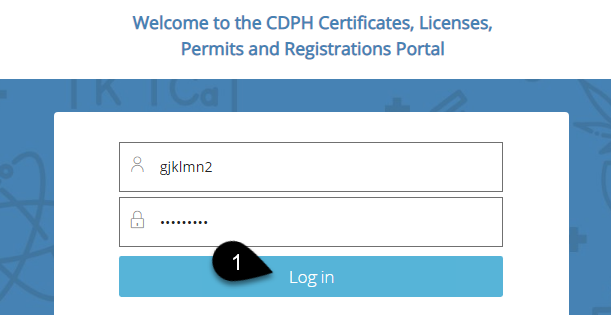
 Log in to your account. If you don't have an account, refer to
Create an Account User Manual.
Log in to your account. If you don't have an account, refer to
Create an Account User Manual.
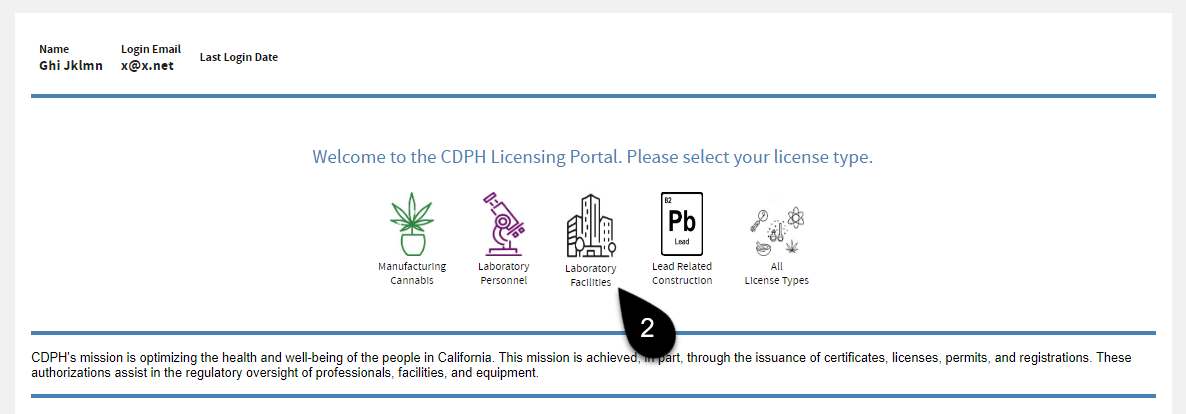
 Click the
Laboratory Facilities icon.
Click the
Laboratory Facilities icon.
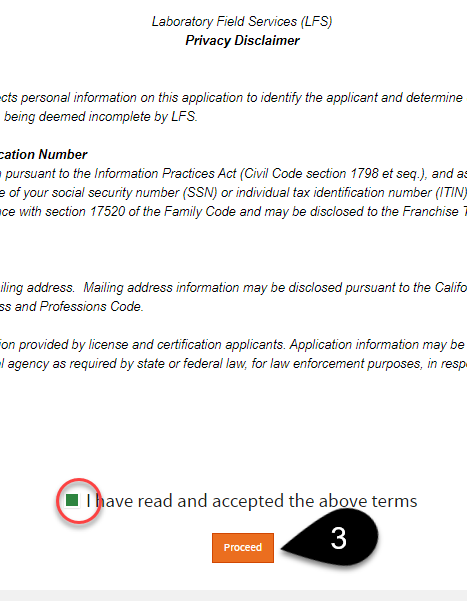
 Read and accept the
Privacy Disclaimer by checking the box. Click
Proceed.
Read and accept the
Privacy Disclaimer by checking the box. Click
Proceed.
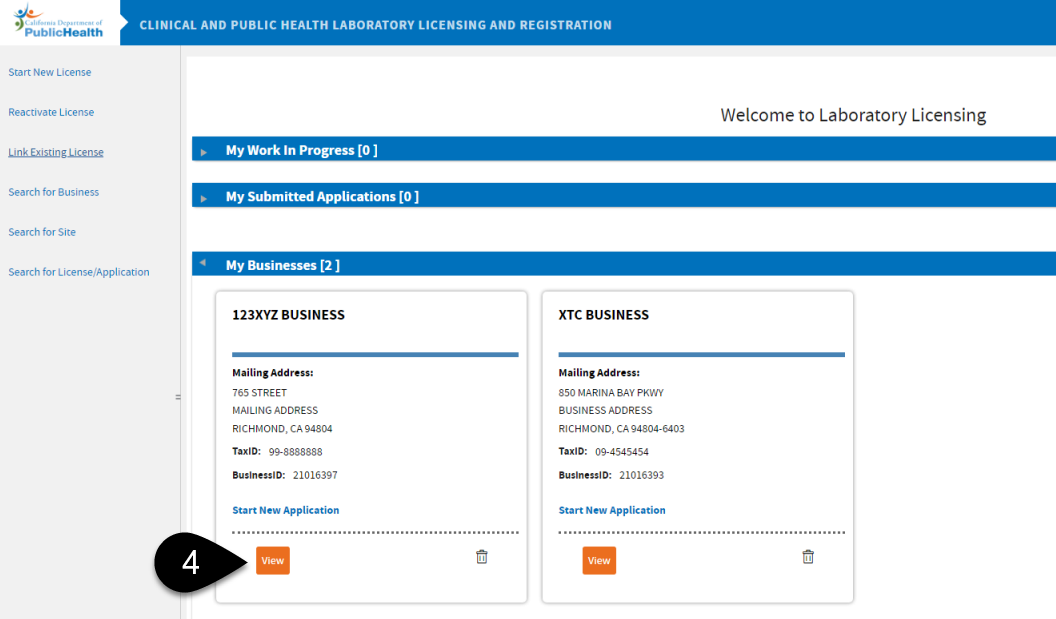
 On your
Welcome screen, click View to go to the business dashboard where you can manage all sites under it.
On your
Welcome screen, click View to go to the business dashboard where you can manage all sites under it.
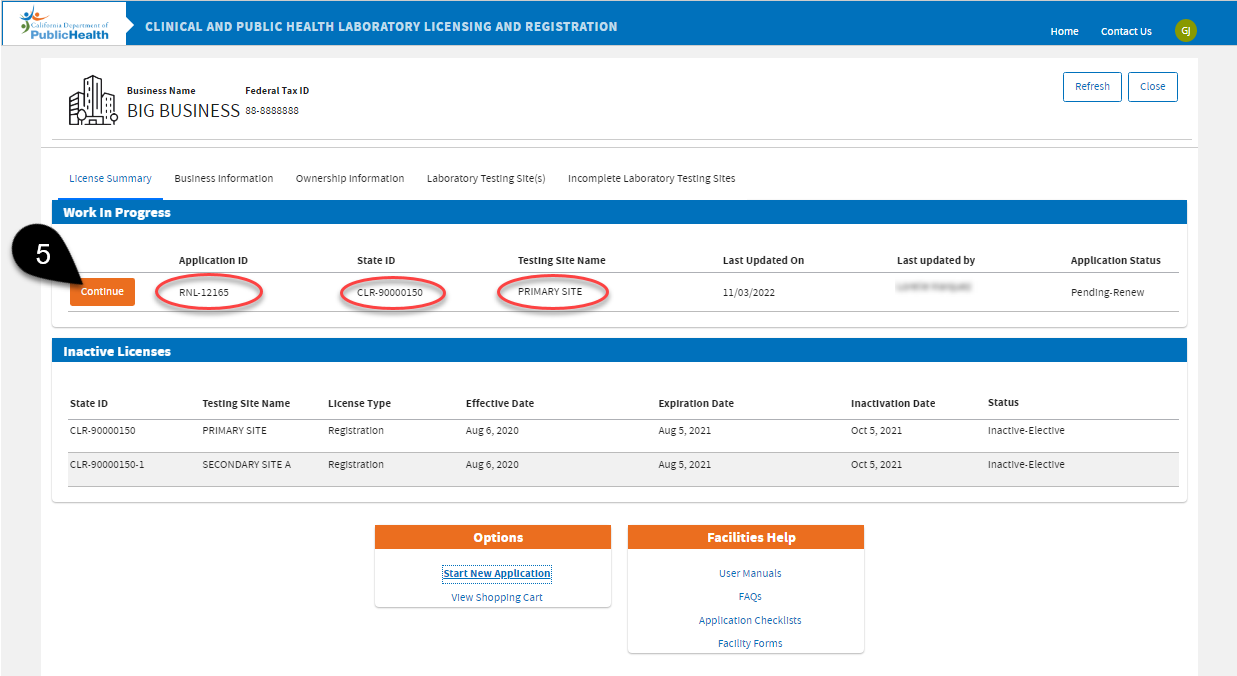
 Click the
Continue button on the appropriate Primary Site's license you are renewing under the
Work In Progress stack. Along the process, you will be asked to select the secondary sites you will renew together with the Primary Site.
Click the
Continue button on the appropriate Primary Site's license you are renewing under the
Work In Progress stack. Along the process, you will be asked to select the secondary sites you will renew together with the Primary Site.
Please Note: If you don't see a "Continue" button and it's 75 days before the Expiration Date, please contact us and include your State ID.
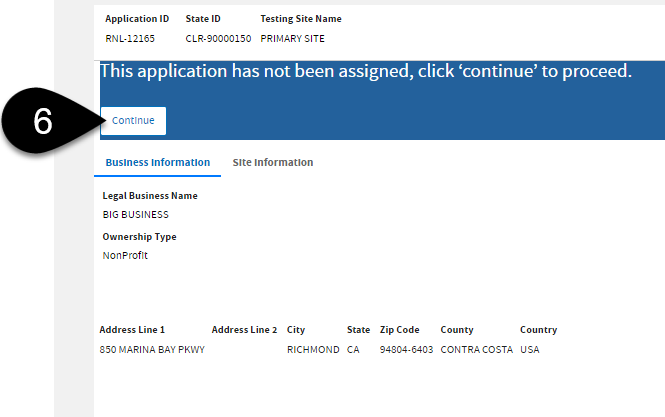
 Review the current information saved in your Business and Site. Click
Continue.
Review the current information saved in your Business and Site. Click
Continue.
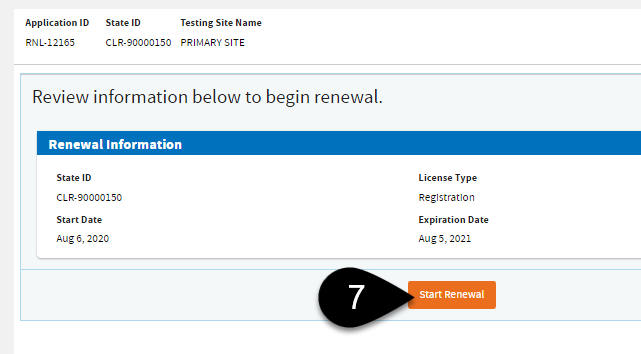
 Click
Start Renewal.
Click
Start Renewal.
 Click
Edit to update the
Business Information you see on this page.
Click
Edit to update the
Business Information you see on this page.
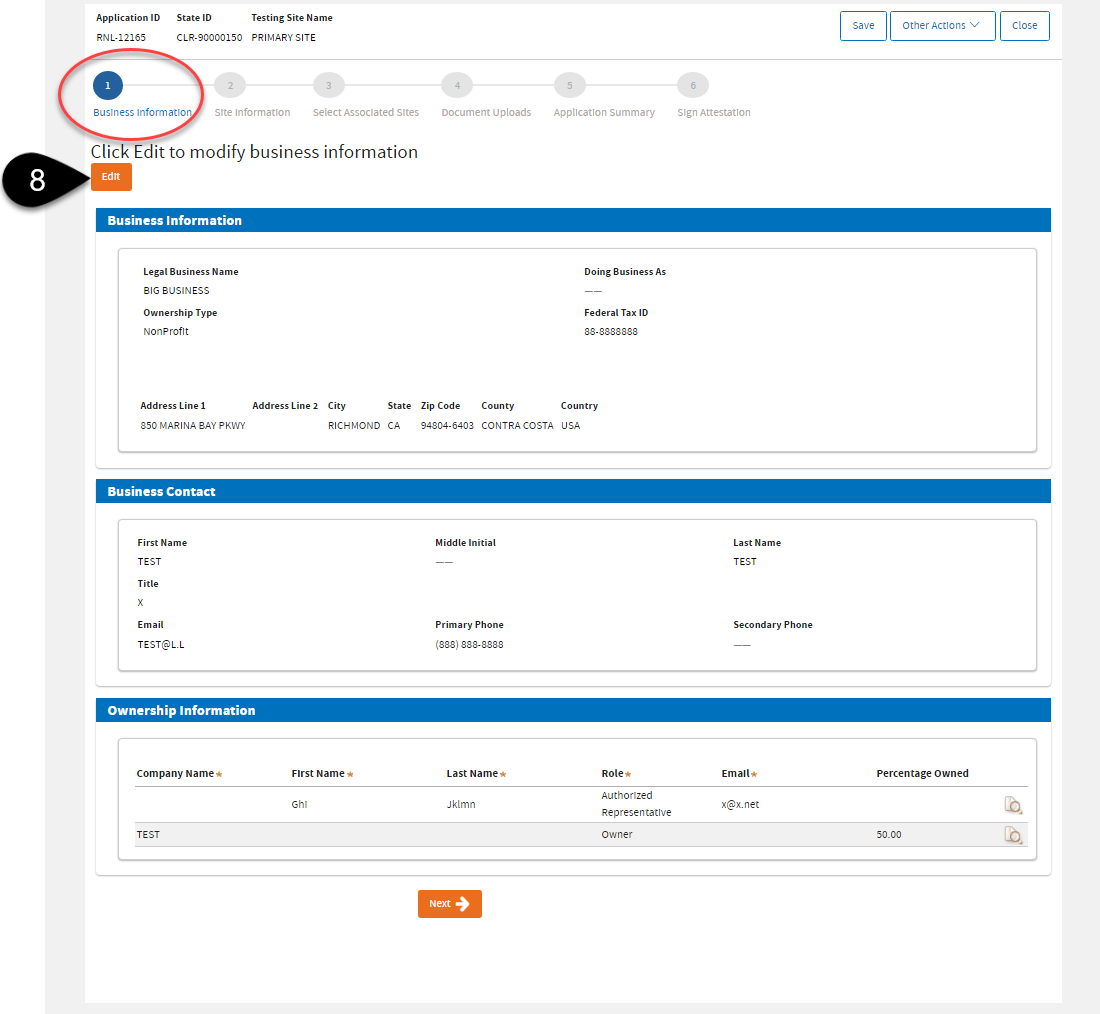
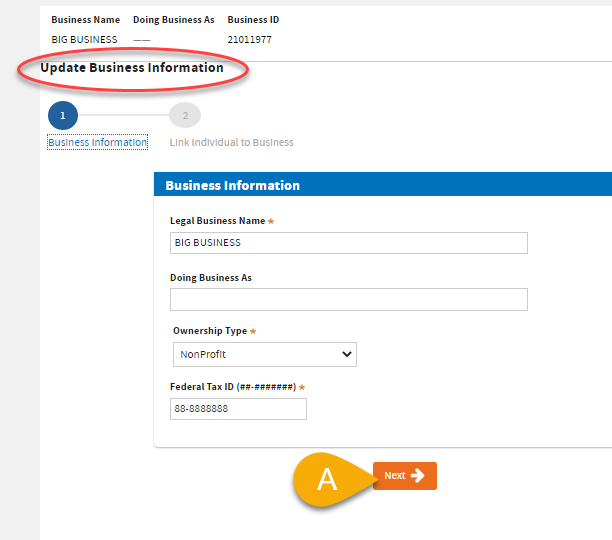
8 (A). Review / update Business Information. Click Next.
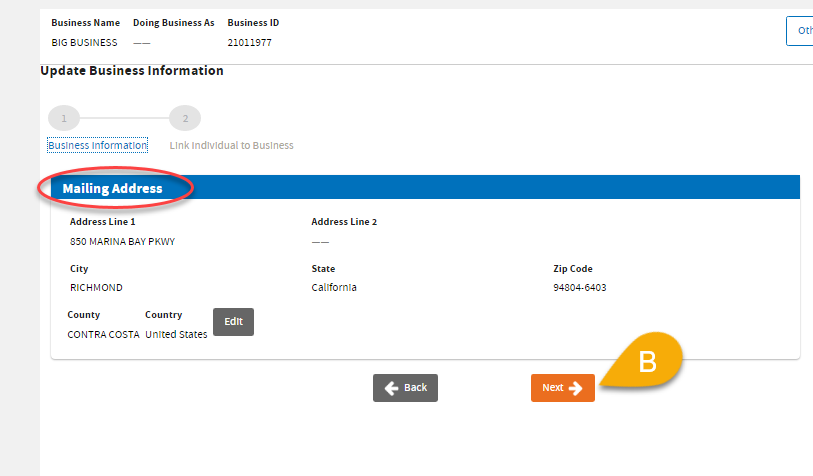
8 (B). Review / update Mailing Address. Click Next.
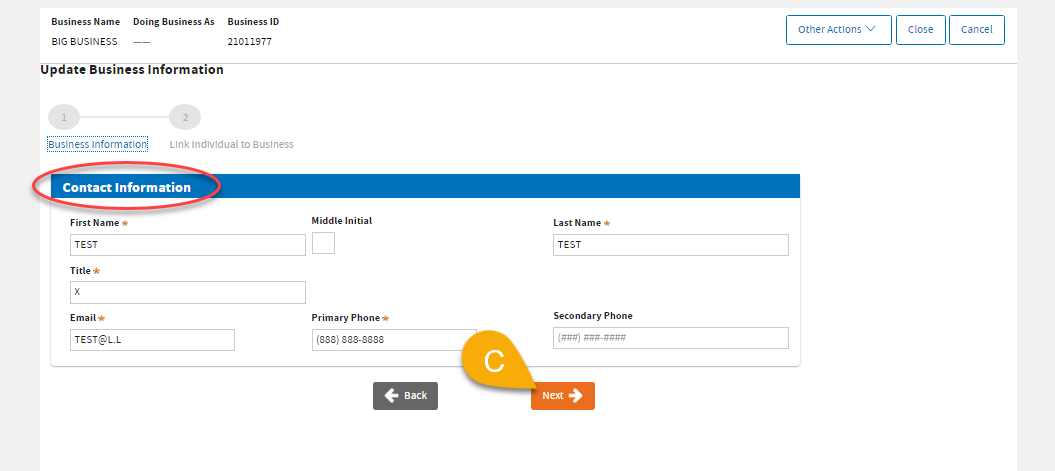
8 (C). Review / update Contact Information. Click Next.
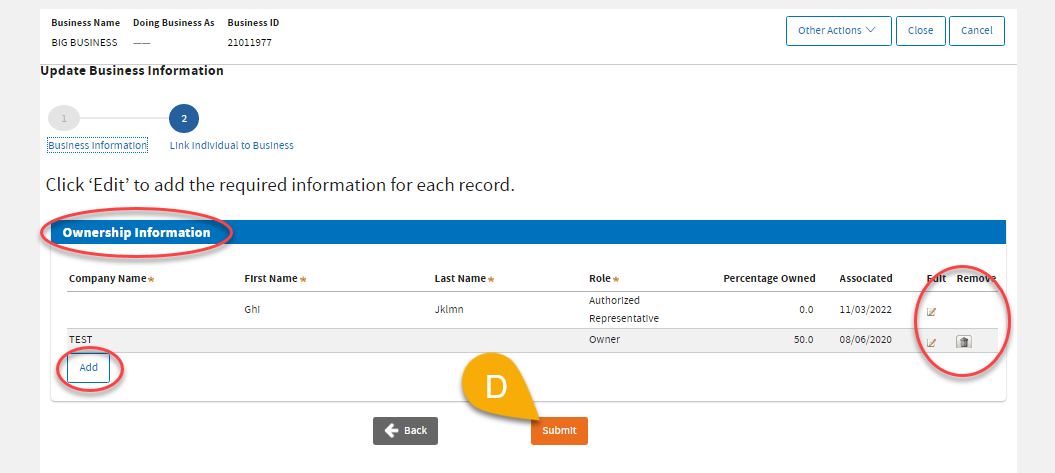
8 (D). Review Ownership Information: Complete the required fields on each record as required by the selected Role.
- To edit: click the Edit icon.
- To add: click Add.
- To remove or disassociate, click the Trash Bin icon.
Then, click
Submit to finish updating the
Business Information.
8 (E). Click Continue Application.
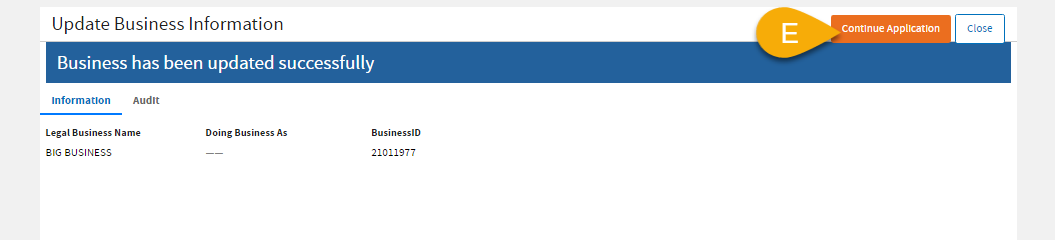
 Review the updated
Business information page. Scroll down and click the
Next button.
Review the updated
Business information page. Scroll down and click the
Next button.
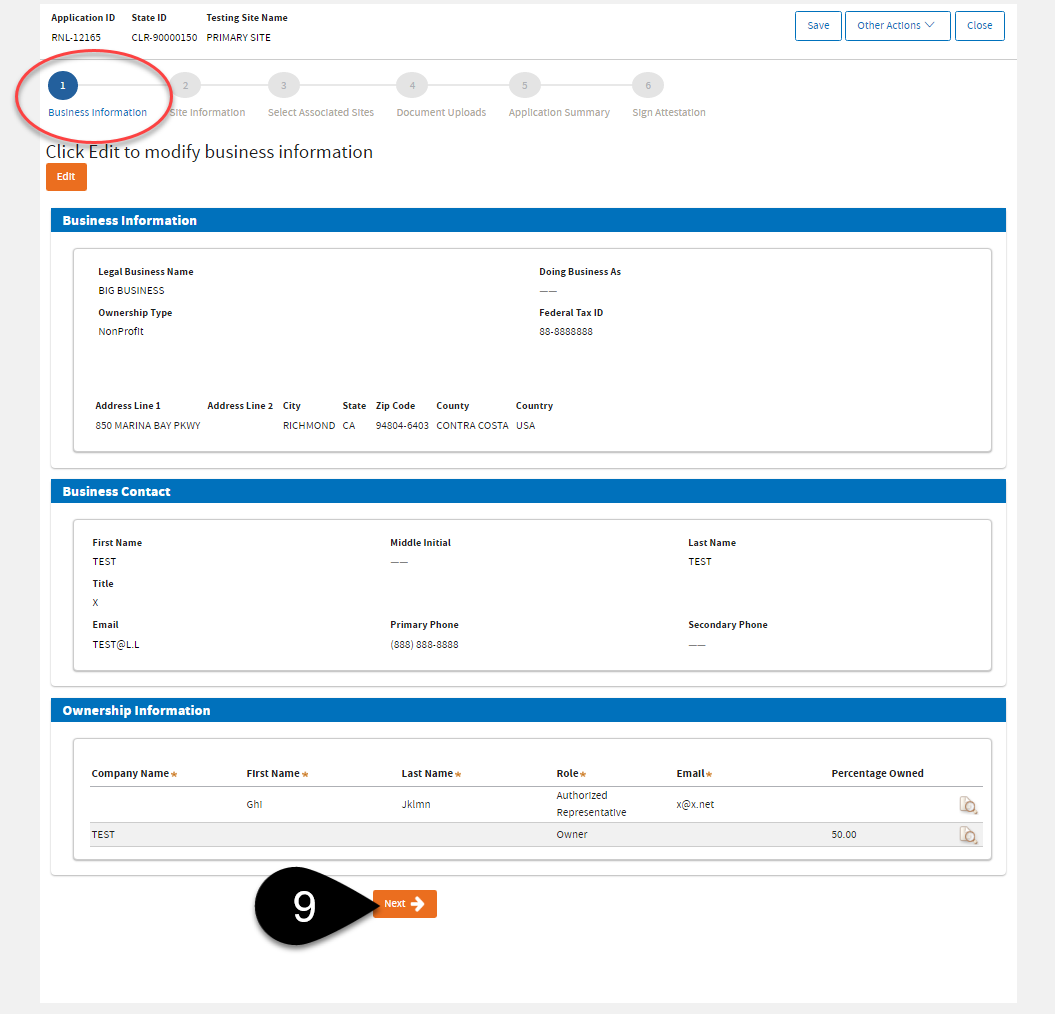
Edit Primary Testing Site |
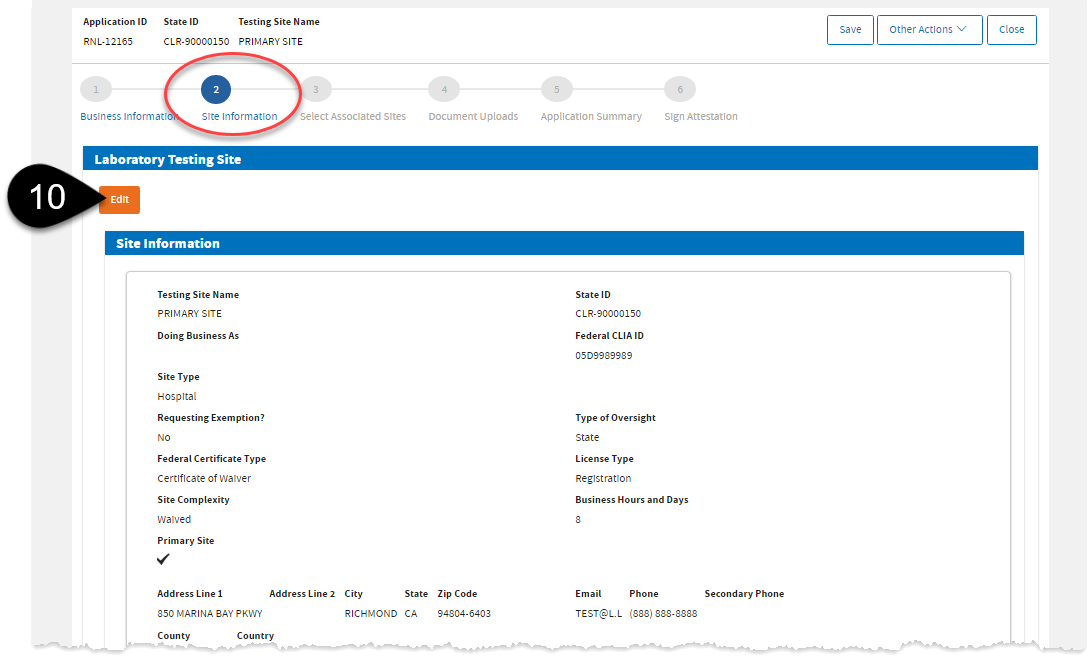
 Click
Edit to update the
Primary Site's Information.
Click
Edit to update the
Primary Site's Information.
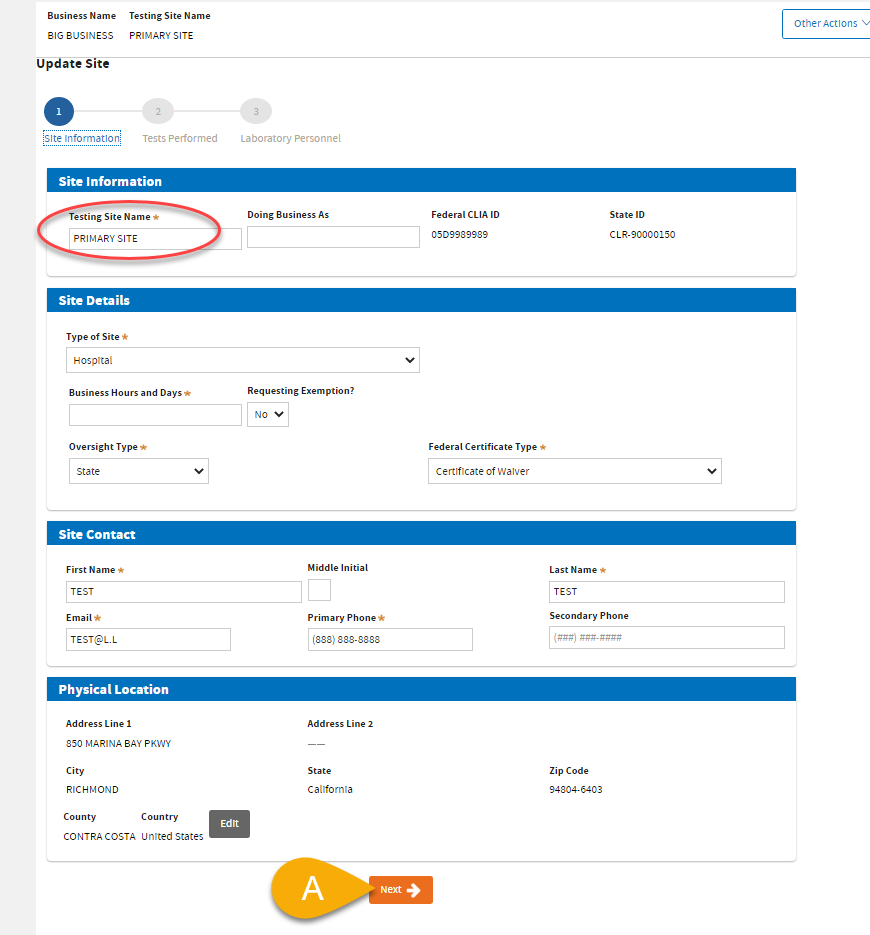
10 (A). Review / update information on Primary Site. Click Next.
10 (B). Review / update Primary Site's test information if necessary. Click Next.
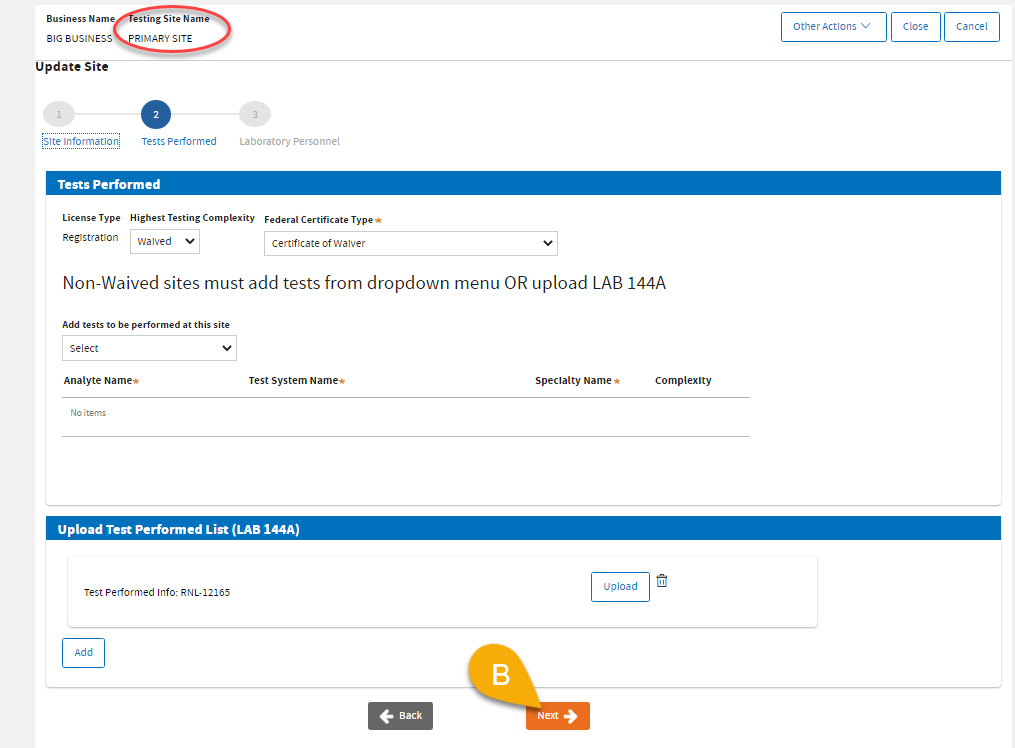
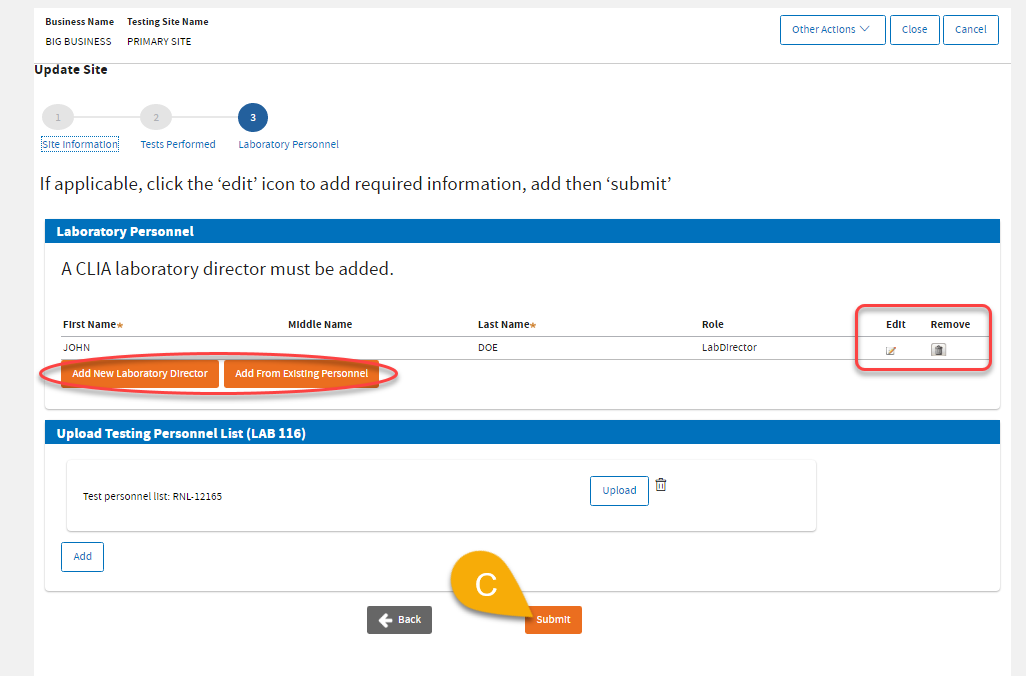
10 (C). Review / update Primary Site's
laboratory personnel if necessary.
- To edit: click the Edit icon.
- To add: click Add New Laboratory Director or Add From Existing Personnel.
- To remove or disassociate: click the Trash Bin icon.
Please note:
- If Waived, uploading LAB 116 is not required.
- If PPMP, or Moderate or High Complexity, upload a completed LAB 116 (PDF) form.
Then, click Submit.
10 (D). Click
Continue Application.

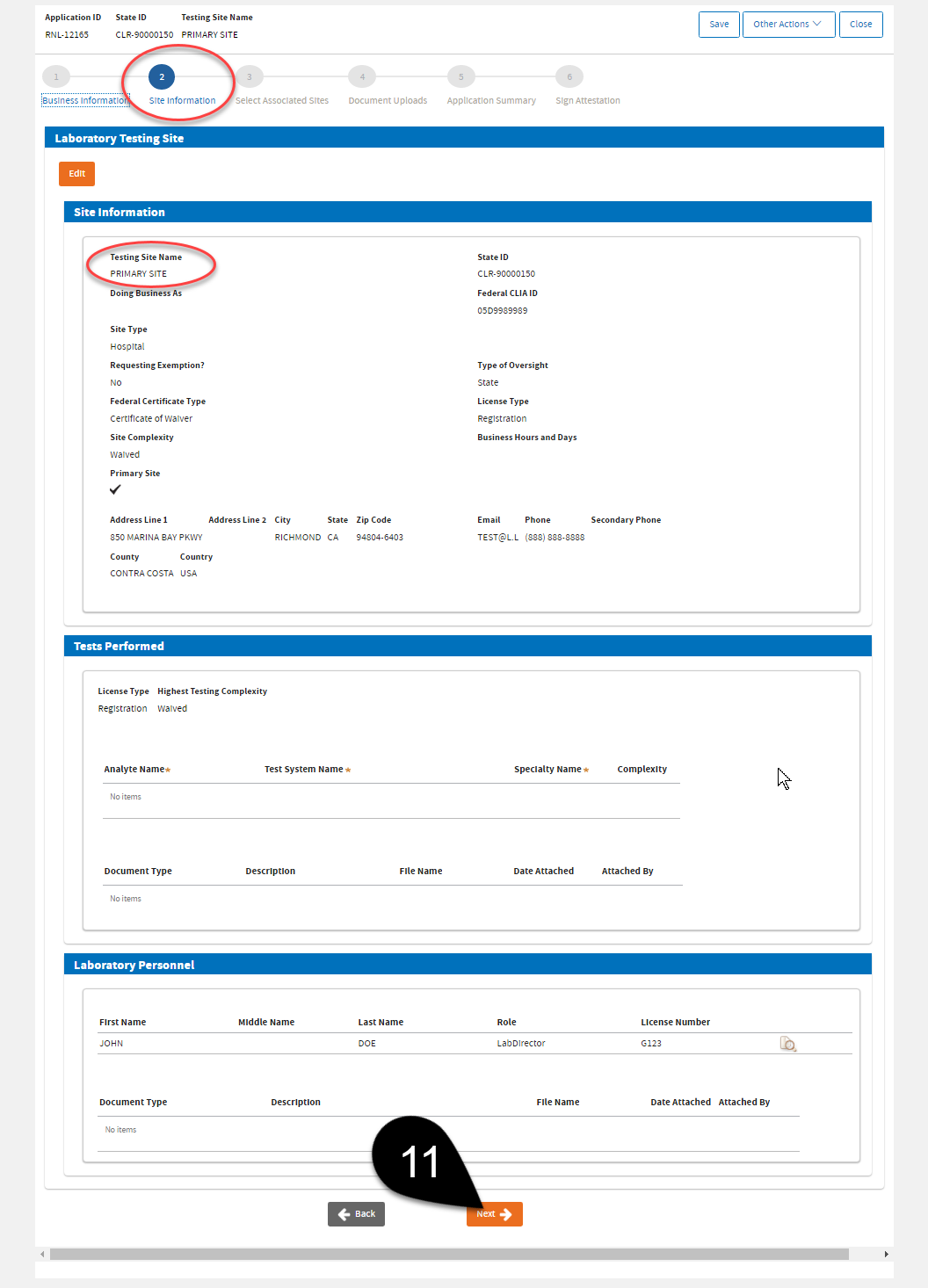
 Review the
Primary Site information page. The updated information should show on this page. Scroll down and click the
Next button.
Review the
Primary Site information page. The updated information should show on this page. Scroll down and click the
Next button.
Associate Sites |
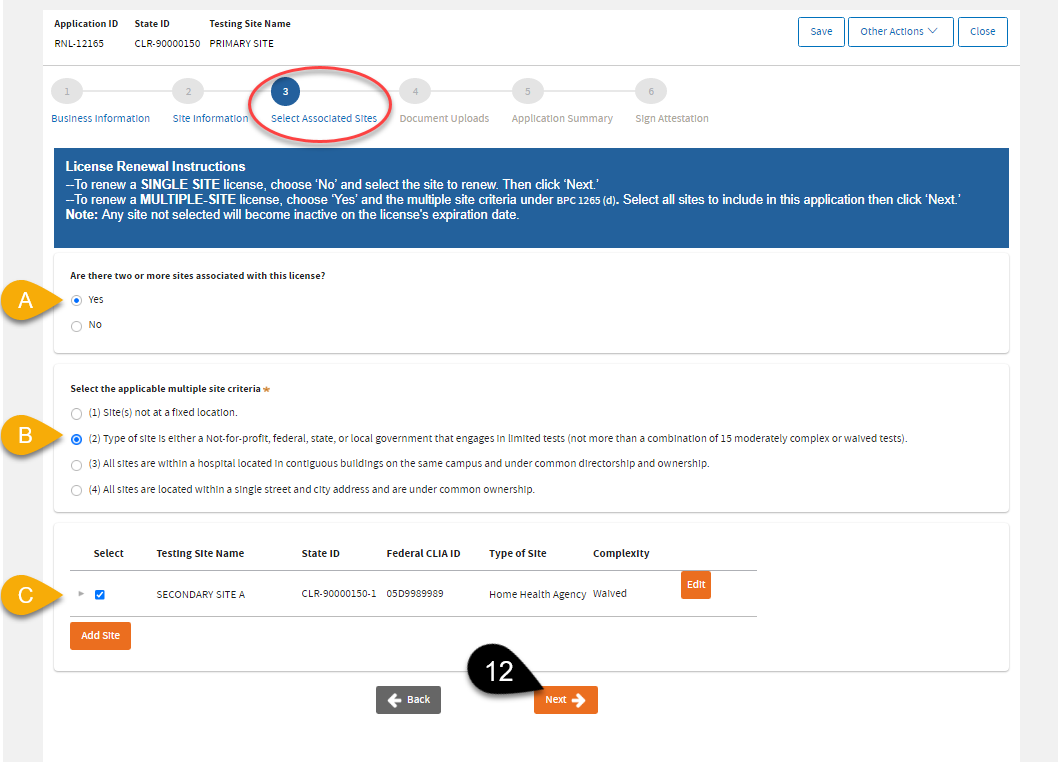
 Here on the
Associate Site page, you can edit your existing secondary sites associated with this business or add new secondary site.
Here on the
Associate Site page, you can edit your existing secondary sites associated with this business or add new secondary site.
- To edit a secondary site: click the Edit button, make the changes and the system will take you back to this page to work on the other secondary sites.
- To add a new secondary site: click the Add Site button, enter the information of the new secondary site, and the system will take you back to this page to continue.
12 (A). Select
Yes to show the secondary sites to edit or select.
12 (B). Select the applicable multiple site qualification, if not selected already.
12 (C). Select the secondary sites you want to renew.
(Important! Otherwise, it will not be renewed)
Please note: Your primary site is already included and edited in the previous page. To edit the Primary Site's information, click the Back button.
Then, click
Next when you're done.
Upload Documents |
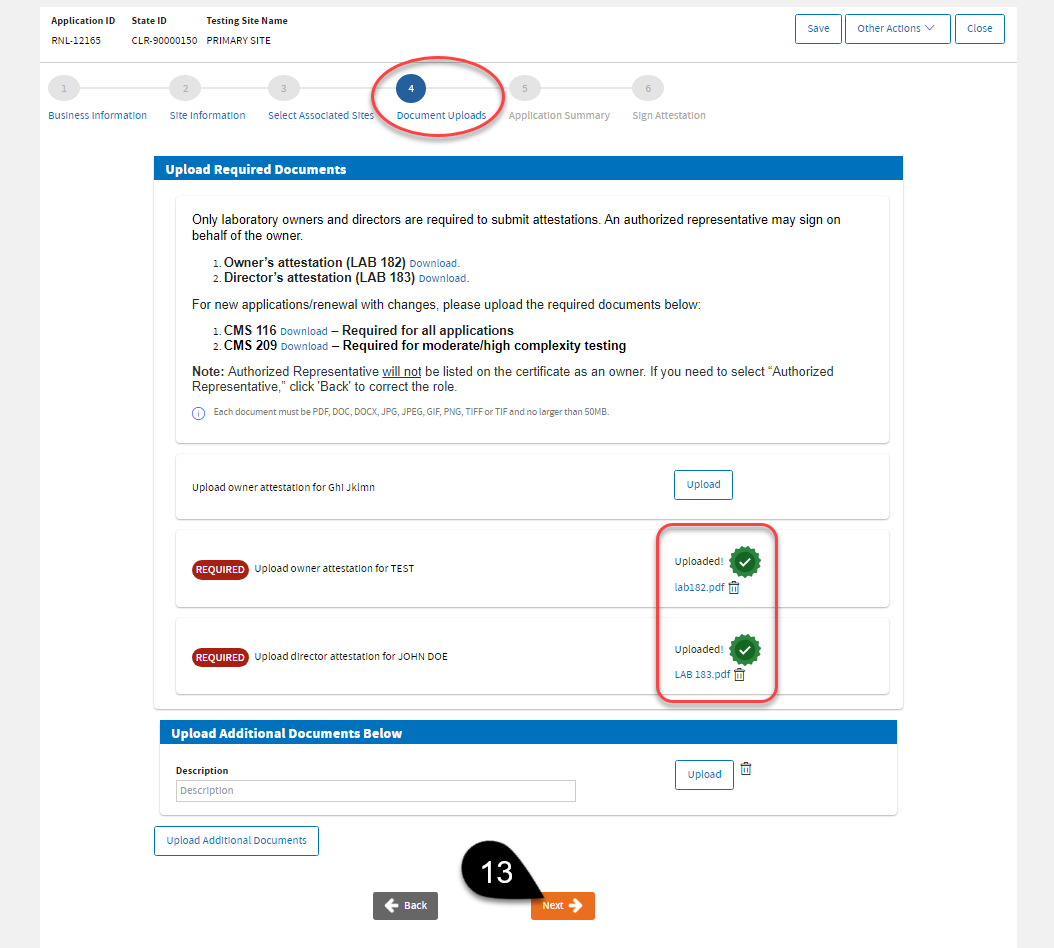
 Upload the required documents. If you are reporting changes with this renewal application, a
CMS 116 form is also required. Click
Next.
Upload the required documents. If you are reporting changes with this renewal application, a
CMS 116 form is also required. Click
Next.
Application Summary |
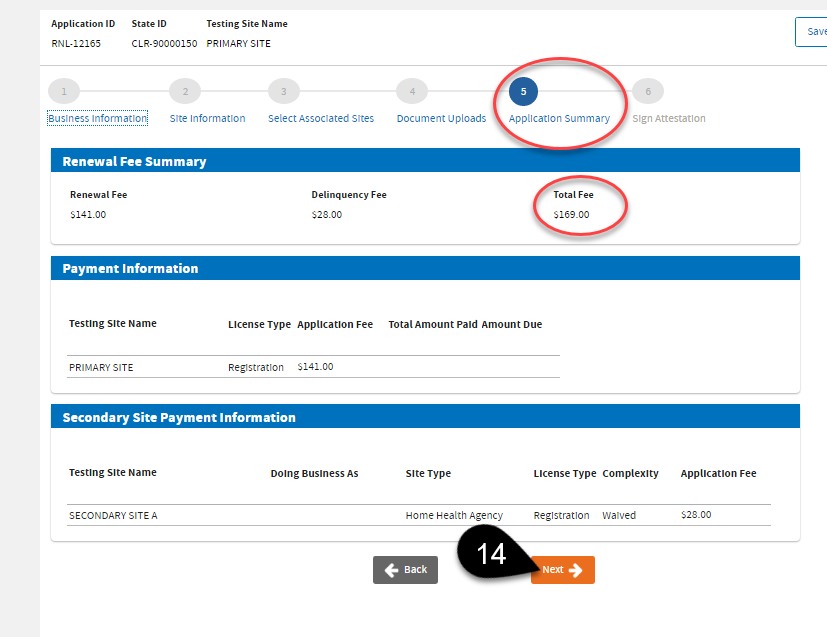
 Review the
Renewal Fee Summary and
Total Fee. Click
Next.
Review the
Renewal Fee Summary and
Total Fee. Click
Next.
Application Attestation |
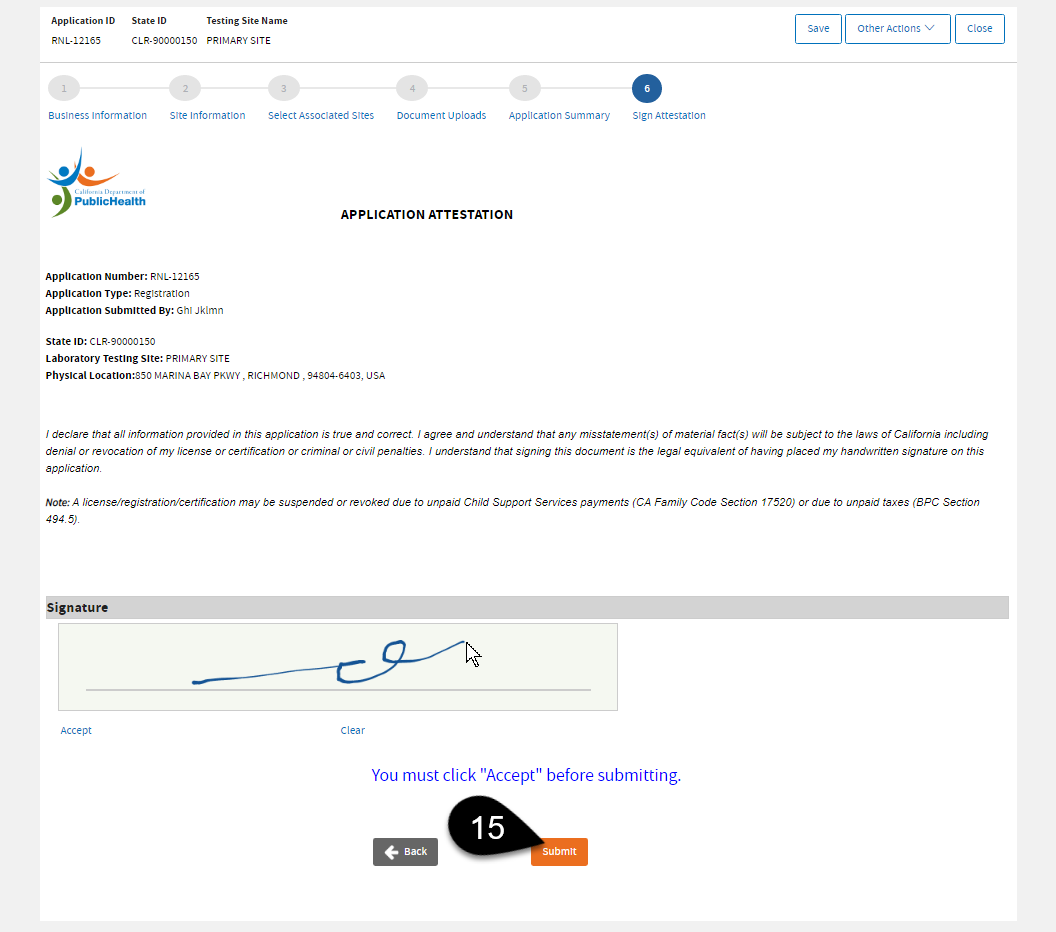
 Review and sign the application attestation. Click
Submit.
Review and sign the application attestation. Click
Submit.
Payment |
 Click
Shopping Cart.
Click
Shopping Cart.

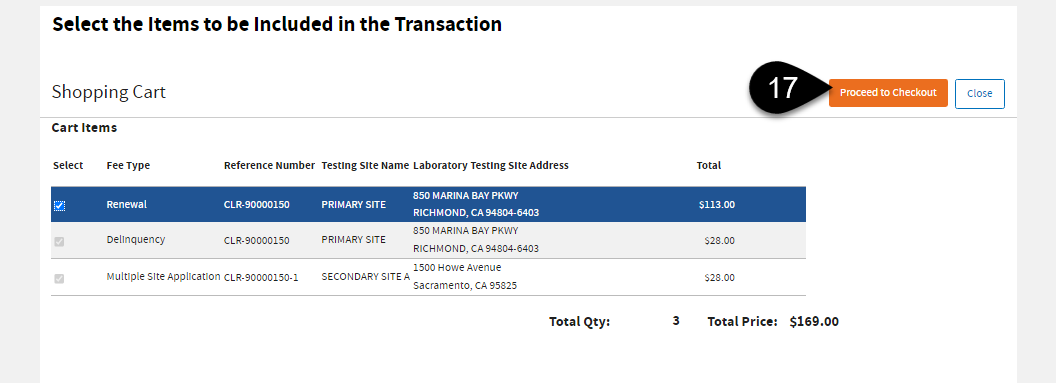
 Review your cart before clicking
Proceed to Checkout.
Review your cart before clicking
Proceed to Checkout.
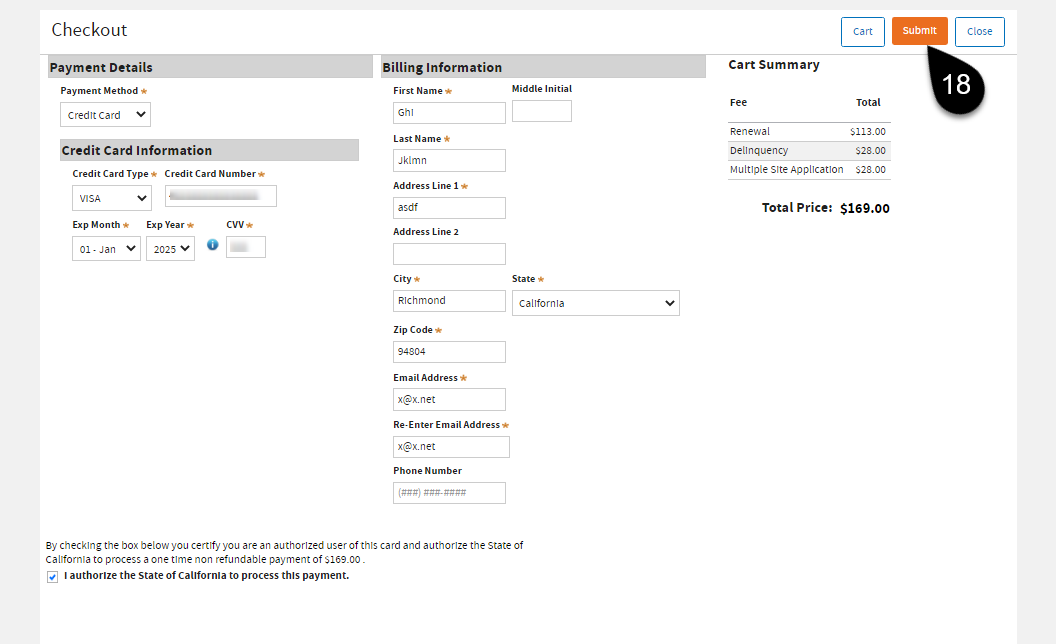
 Enter the payment details. Check the payment authorization clause. Click
Submit.
Enter the payment details. Check the payment authorization clause. Click
Submit.
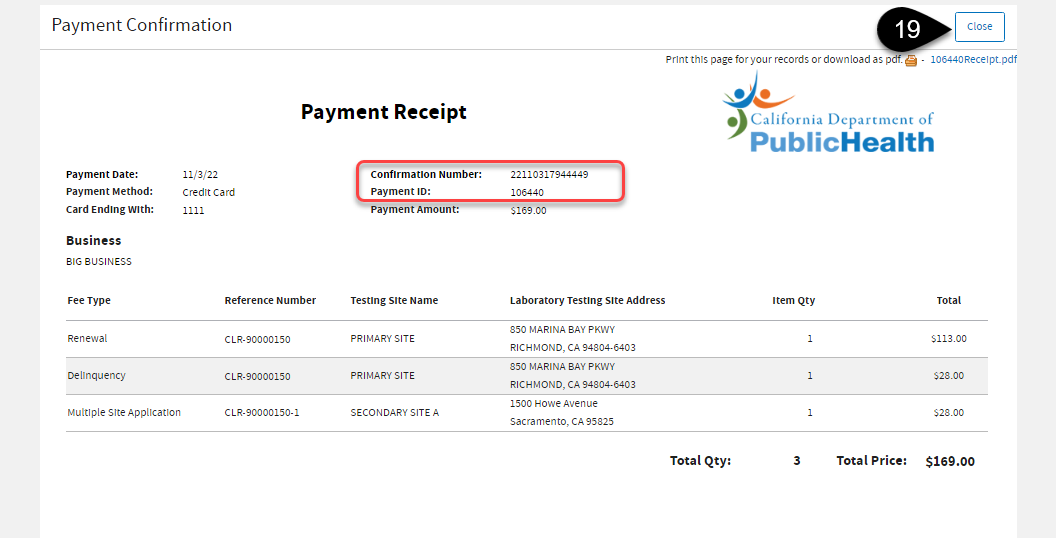
 The receipt can be downloaded. Click
Close.
The receipt can be downloaded. Click
Close.
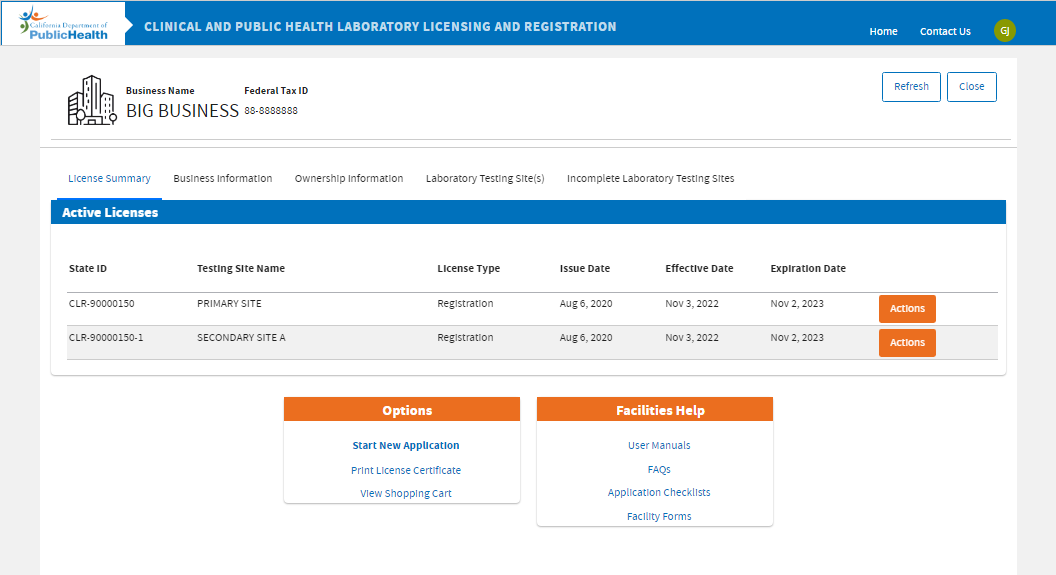
 Your business dashboard will show the status of your application. Once approved, you will see the Effective and Expiration Dates.
-END-