





LABORATORY FIELD SERVICES
New Single Site License (User Manual)
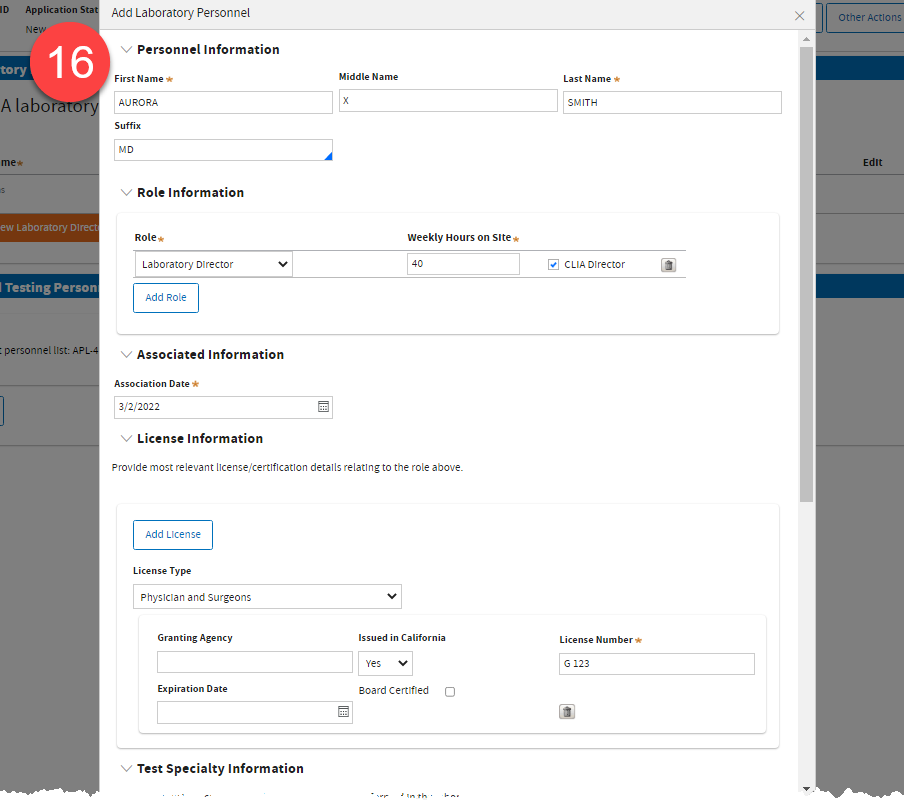
 Enter the
Laboratory Director information. Complete all the required fields, then click
Add.
Enter the
Laboratory Director information. Complete all the required fields, then click
Add.
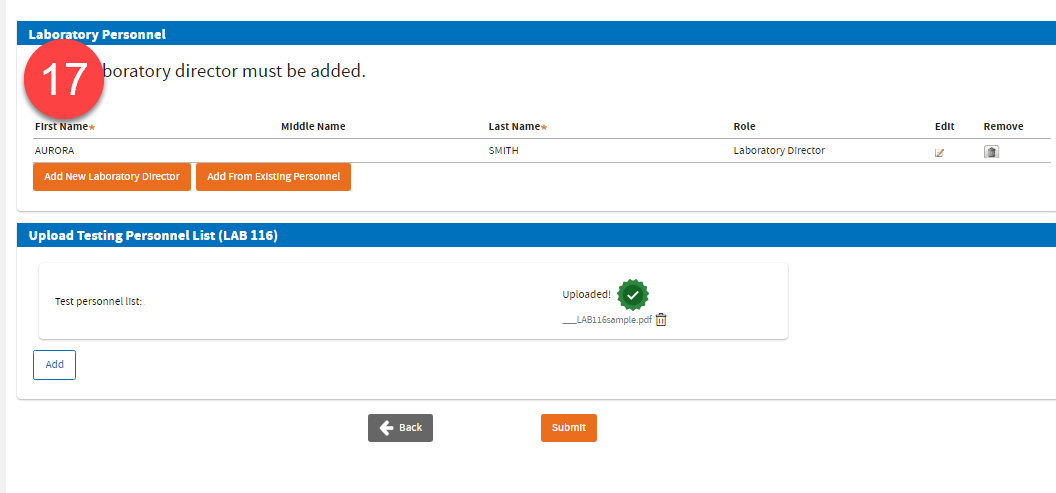
 Add another laboratory personnel
-OR- you may upload a completed
LAB 116.pdf form for review. Click
Next.
Add another laboratory personnel
-OR- you may upload a completed
LAB 116.pdf form for review. Click
Next.
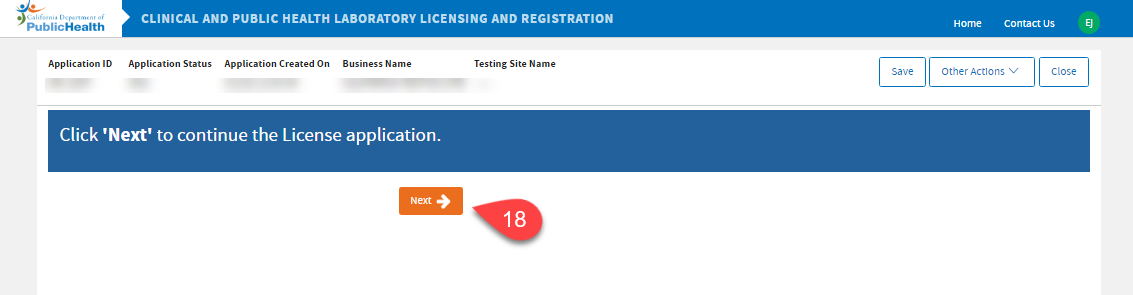
 Click
Next to continue the license application.
Click
Next to continue the license application.
License Application Process
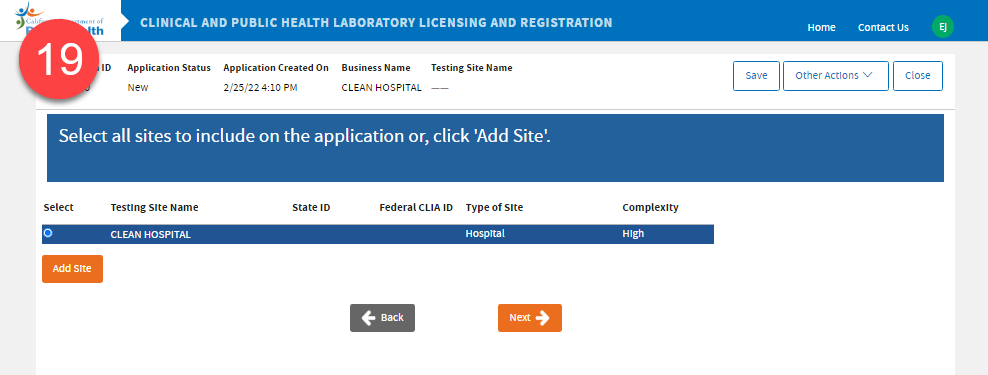
 Select the site you added to include in the application. Click
Next.
Select the site you added to include in the application. Click
Next.
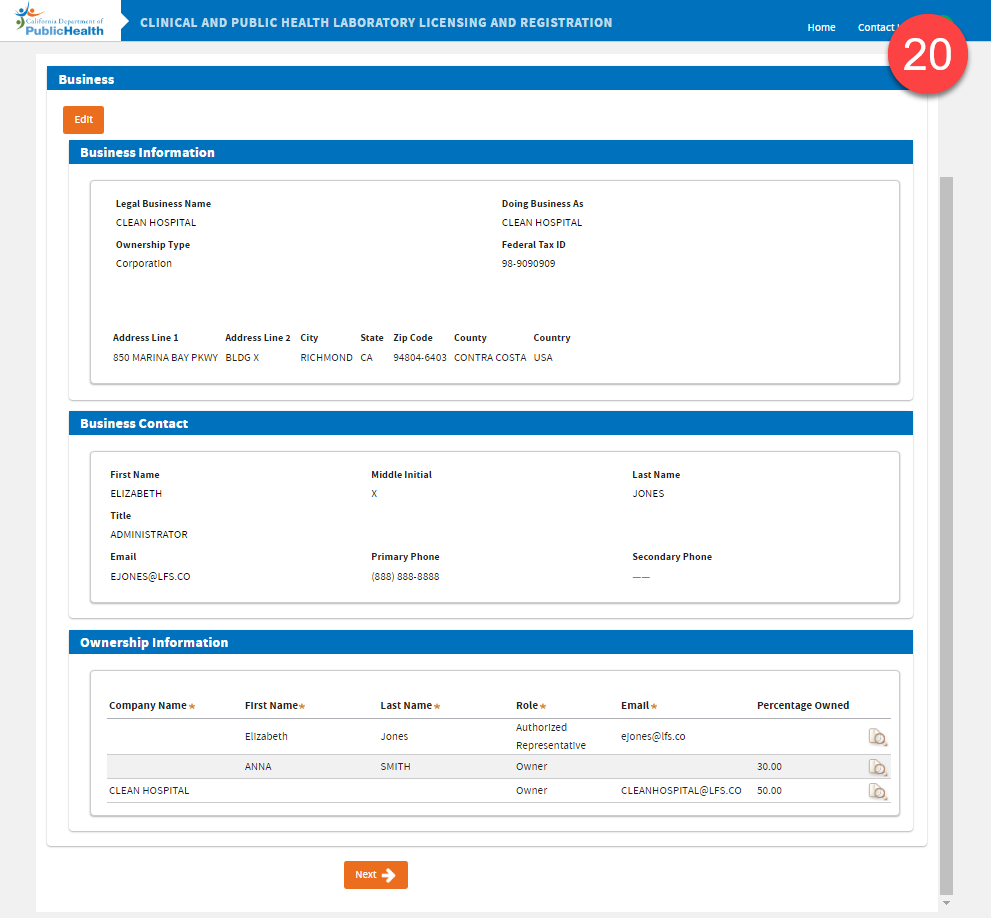
 If you need to make changes to the business information, click
Edit. Otherwise, scroll down and click
Next.
If you need to make changes to the business information, click
Edit. Otherwise, scroll down and click
Next.
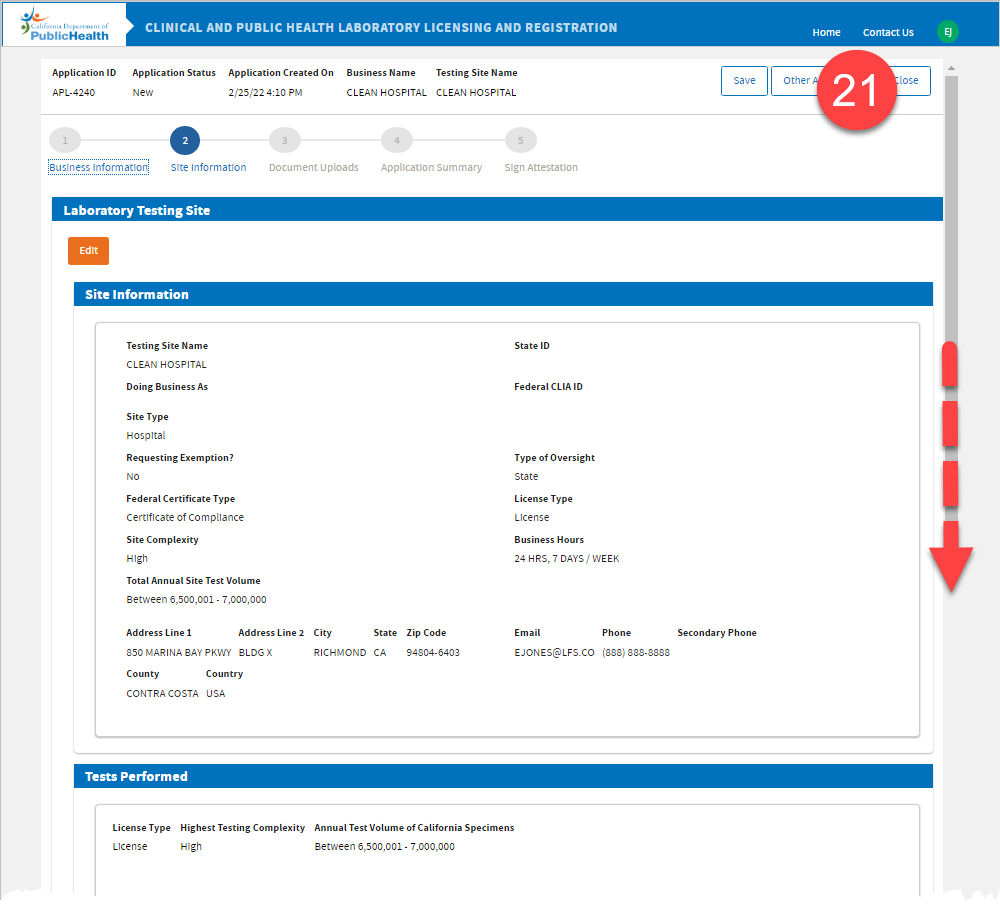
 If you need to make changes to the testing site information, click
Edit. Otherwise, scroll down and click
Next.
If you need to make changes to the testing site information, click
Edit. Otherwise, scroll down and click
Next.
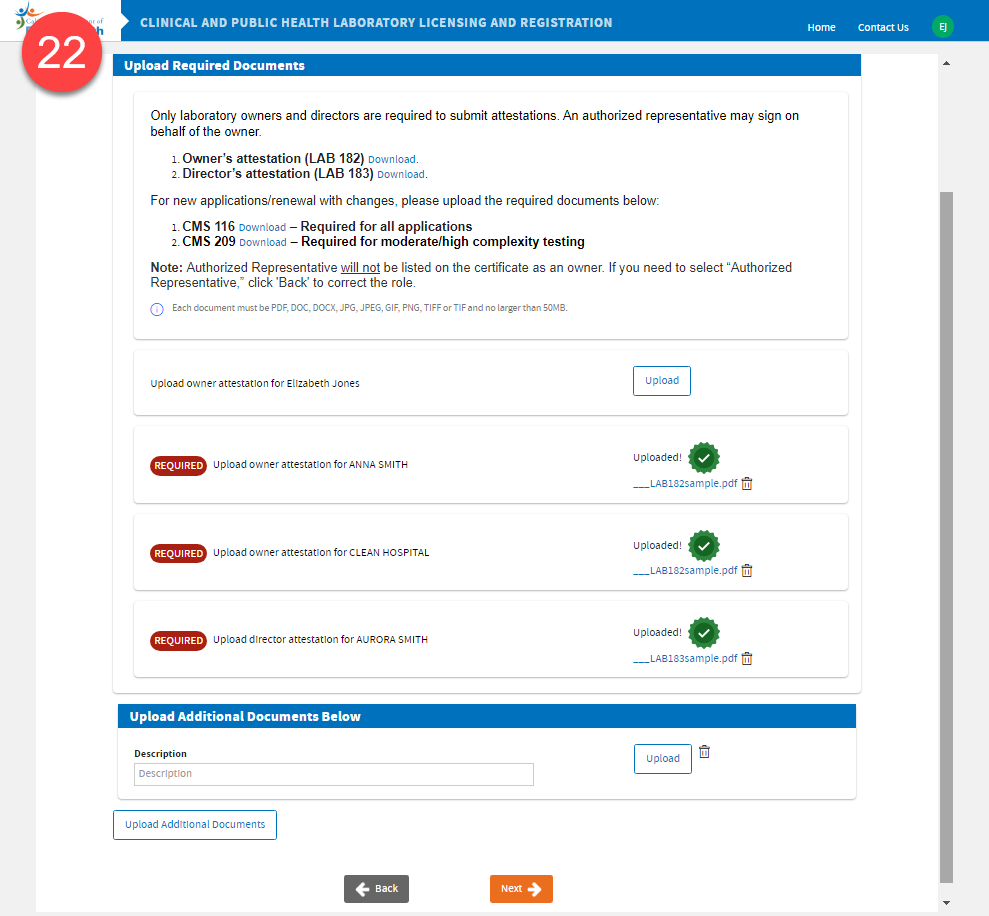
 Read to know the required forms, then upload on this page. You may also upload
CMS 116.pdf form and other additional documents for review on this page. Click
Next.
Read to know the required forms, then upload on this page. You may also upload
CMS 116.pdf form and other additional documents for review on this page. Click
Next.
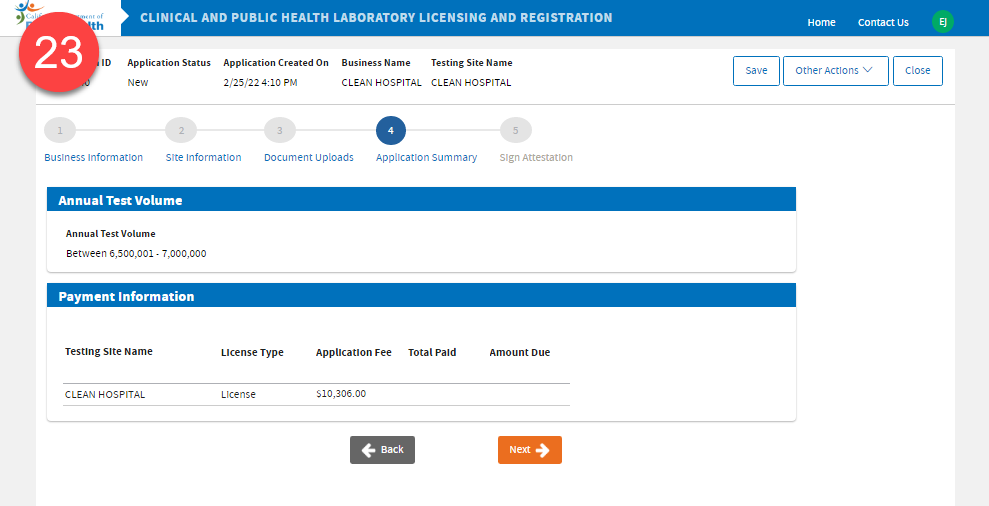
 Review the Application Summary. Click the
Back button if you need to make changes, otherwise, click
Next.
Review the Application Summary. Click the
Back button if you need to make changes, otherwise, click
Next.
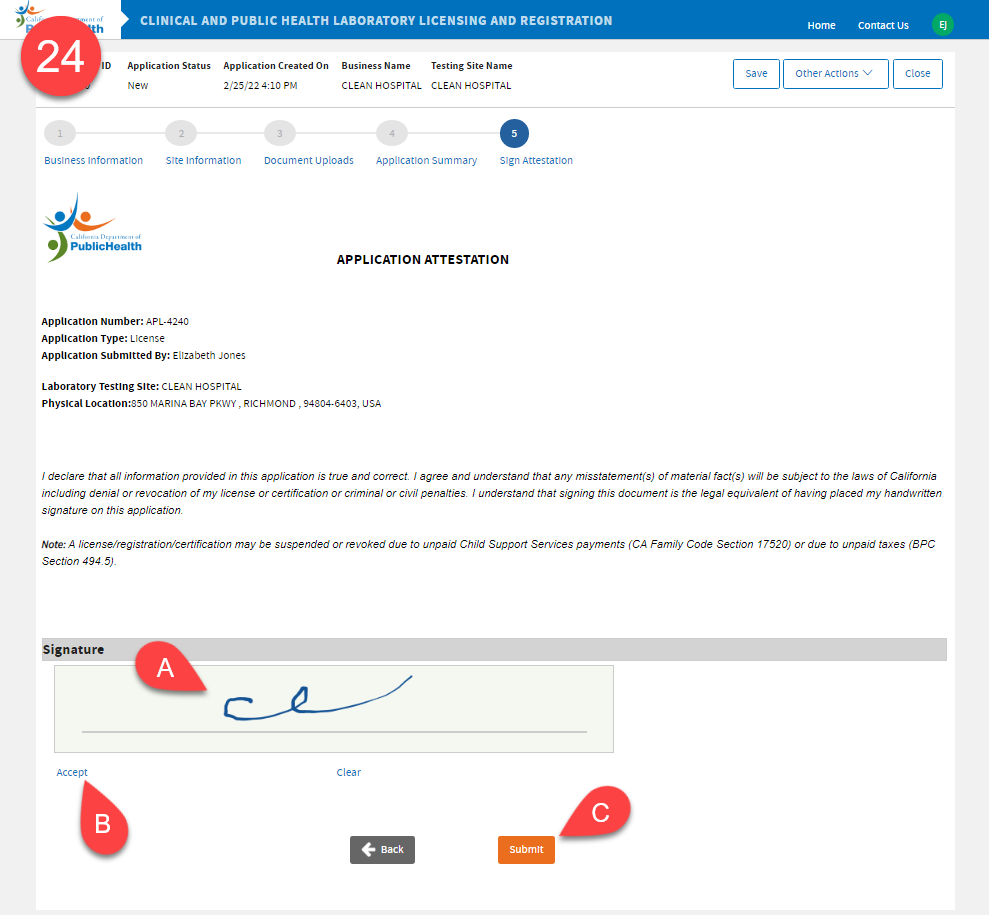
 Read and accept the Application Attestation. After this page, you won’t be able to click the Back button to make changes:
|
A. |
Sign Attestation. |
|
B. |
Click Accept. |
|
C. |
Click Submit. |
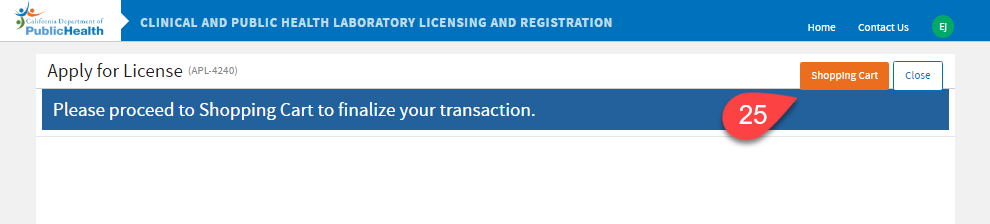
 Click the
Shopping Cart to finalize your transaction.
Click the
Shopping Cart to finalize your transaction.
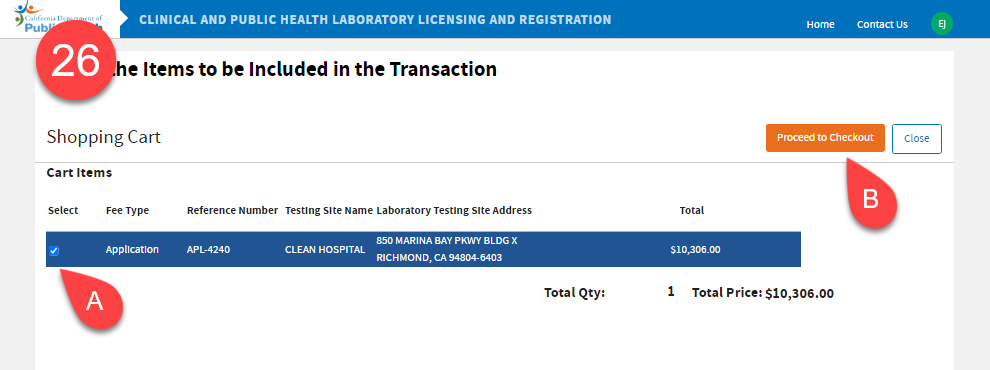
 If you have multiple items in your shopping cart, select the items you want to include in your payment.
|
A. |
Select items to be paid. |
|
B. |
Click Proceed to Checkout. |
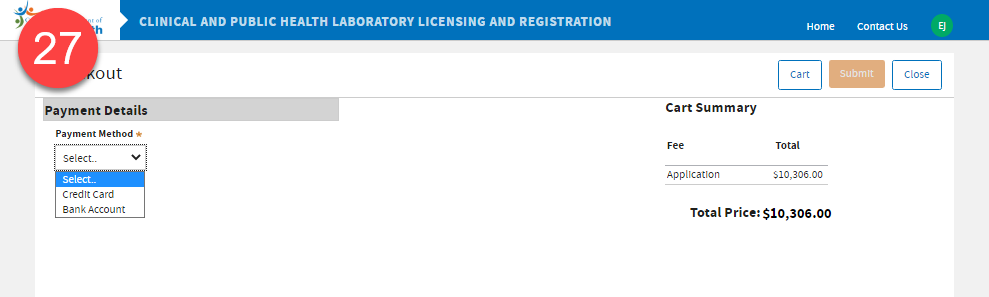
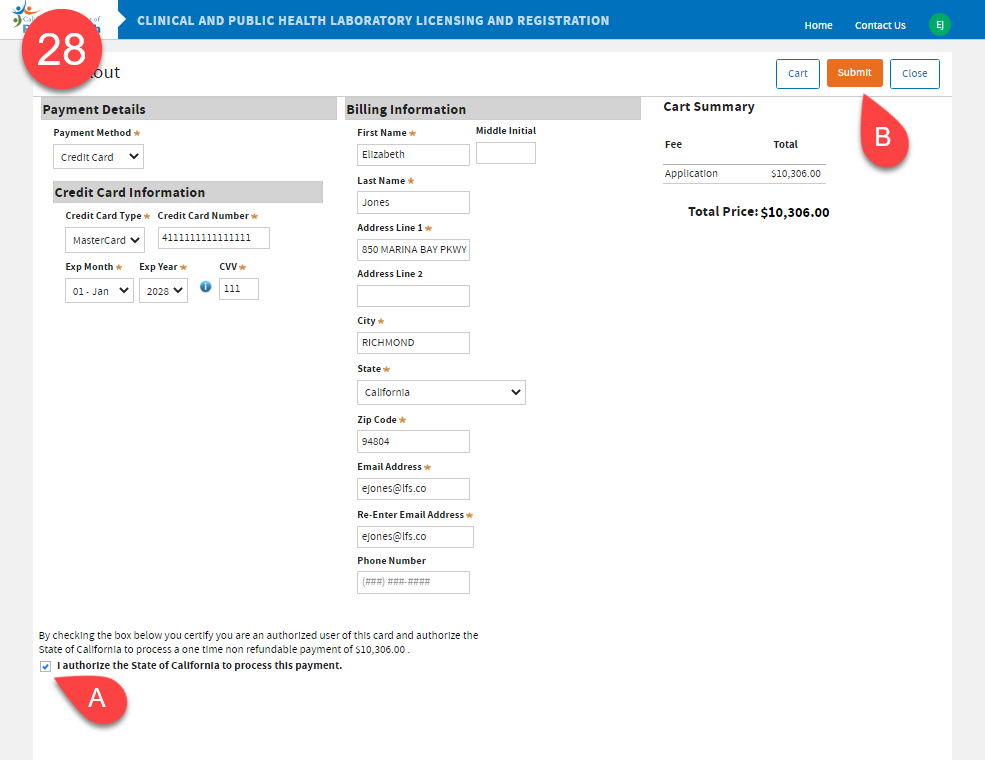
 You may pay by Credit Card or Bank Account.
 Enter all the required information.
|
A. |
Read and agree the authorization clause by checking the box. |
|
B. |
Click
Submit to submit your application for review. |
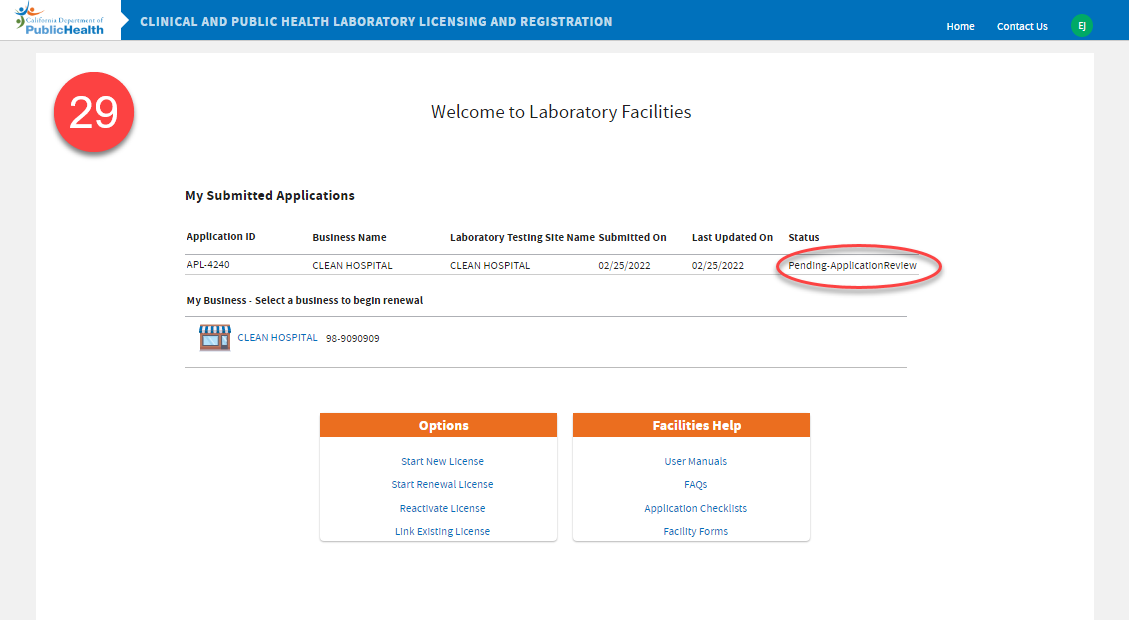
 Your application is now in queue for review. Check the status on your Welcome Screen.
-END-